Shortcuts & Setting You Up for Success
Learning Objectives
- Help us help you!
- The importance of starting good habits today
- Screen Real Estate and Window Management with Rectangle
- Mac Shortcuts
- Terminal Shortcuts
- Visual Studio Code Settings and Shortcuts
- Typing
- Misc.
A Quick Note
We try to keep all of our notes updated with all the links working and images showing up, but sometimes things get moved around (especially when we just checked them a couple days ago!). If any links or images are broken, please let us know and we'll update them!
Introduction
As a burgeoning web developer, you have a lot to learn. One really critical thing to focus on is starting good habits today. If you teach yourself the best ways to do things now, you won't have to go back and correct yourself later. You'll also learn to code faster and have a better workflow, where you won't lose minutes switching between applications and windows. Utilizing keyboard shortcuts will also help you type faster and let you focus on the task at hand.
note
A lot of these steps will feel awkward at first, but the more you use them, the sooner they'll become second nature. Part of succeeding is just taking a deep breath and taking a moment to practice the better way, then it'll get easier and easier.
There are hundreds, if not thousands, of little things you can do to make you a more effective coder. Here we're going to focus on a small group of things that will have the biggest impact for being ready for this course.
🔐 We will be downloading applications to your computer. You will need the password for your Mac in order to proceed.
Part 1 - Rectangle
- Rectangle helps you to move and resize your screens with the a few clicks on your keypad. You no longer have to waste time using your mouse to rearrange the size of the screen.
- Not only will this help to save you time, but it will help to add to the illusion that you are a bada$$ h4ck3r.
Install Rectangle
💻 Click on this link https://www.rectangleapp.com/ and download and install Rectangle
Or install with brew cask:
brew install --cask rectangle
Once it's installed, you should have little blackboard with 3 white dots at the top, right of your screen.
Allow Rectangle
- Rectangle needs to change your computer's privacy settings to allow this application. To do this, in your Spotlight (open with
cmd+space), type Security & Privacy or open Security & Privacy from the System Preferences icon in the dock. Once open, you should see this:

- Click on the lock in the bottom left. You will be prompted to enter your computer password:

- Click on Rectangle to give it permission:

- Click on the lock again to save the changes:

Update Rectangle Preferences
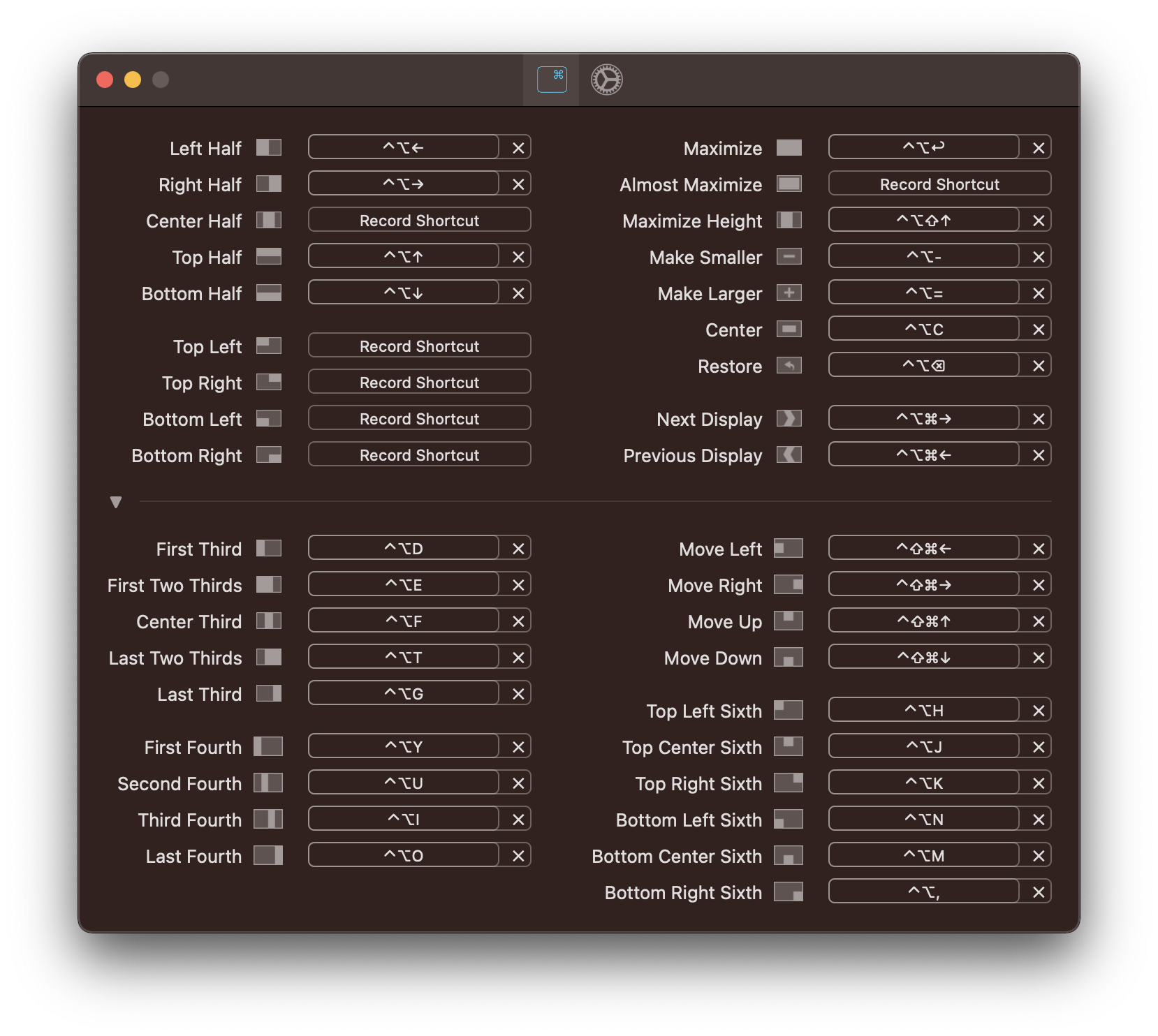
Now, click on the icon at the top of your screen and select
Preferences.You can update any of your Rectangle preferences.
xon a banner and then click to 'record' your three keystrokes.You will likely use full screen, right half, left half and bottom half the most frequently.
⌛ Activity (3 minutes)
- Update some of your Rectangle preferences.
⌛ Rectangle Activity (3 minutes)
- Try to organize your windows using Rectangle (and then adjusting as needed) like so:
Monitors

Part 2 - Mac Keyboard Shortcuts
Shortcuts for any occasion
- Here are the shortcuts that you will use most often:
| Shortcut | Description |
|---|---|
| Command-A | Select All Items |
| Command-C | Copy the selected item to the Clipboard. This also works for files in Finder |
| Command-S | Save file |
| Command-V | Paste the contents of the Clipboard into the current document or app. This also works for files in Finder |
| Command-X | Cut (remove) the selected item and copy it to the Clipboard |
| Command-Y | Redo - redo something you undid (when you've used Command-Z) |
| Command-Z | Undo the previous command/typing |
| Command-Shift-4 | Take a screenshot |
| Command-Spacebar | Open Spotlight |
⌛ Shortcuts Activity (5 minutes)
- Open your Desktop or Documents in Visual Studio Code
- Make a file
- Copy ALL (command A)the text from this file (you can copy from the browser)
- Paste (command V) the text into your new file
- Save (command S) - there is a blue dot on the top tab of your file that should disappear once your file has successfully saved
- Undo (command Z) - your text should go away
- Redo (command Y) - your text should come back
- Cut (Command X) - the title of your copy of this document
- Paste (Command V) - to the bottom of your copy the document
- Save (Command S) - one final time
- take a screenshot of something
💻 Additional Mac Keyboard Shortcuts
⌛ Activity (2 minutes)
Part 3 - Command Line in Terminal
- You will find yourself having to re-run applications when testing your app or you will find yourself needing to retype certain lines over and over again. Be lazy! It will give you more energy for the important stuff.
Command Line Shortcuts
The two most handy ones for you right now are the up arrow and tab
If you would learn any two - learn these!
⬆️ Are you running the same command over and over again? Use the up arrow to show your previous commands. Hit enter to run them.
⭐ Use tab to autocomplete a file or folder name by beginning to type it out. If it's not autocompleting, you may be in the wrong directory!
| Shortcut | Description |
|---|---|
| Control-A | Go to the start of the prompt |
| Control-E | Go to the end of the prompt |
| Control-U | Clear the current line |
| Control-C | Stop the running process (works for many, but not all) |
| Command-K | Clear the window |
💻 Additional Command Line Shortcuts for Terminal can be found on the apple site.
⌛ Terminal Activity (5 minutes)
- Open your terminal and let's try out a few terminal shortcut commands while completing the steps below.
- You can open terminal via the dock, or by using Spotlight Search (
cmd+space) and typingterminal.
- Create a folder on your desktop called
deleteme.cd DesktopTab it only typecd Deand then press tab- 👀
Desktopis spelled by your computer with a capitalD! Case sensitive matters when searching for a directory or file! mkdir deleteme
- Inside
deleteme, create a filetest.html.cd deletemeTab it only typecd deand then press tabtouch testing.html- You can name your file whatever you want, but it must end with
.html! - press the up arrow
touch test.htmlshould reappear control-uclear the line of textcommand kclear the windowls- make sure you're still in the right place
Part 4 - Visual Studio Code Shortcuts
To make it easier to open our files through terminal, you can use the keyword code in front of your files (or code . to open all the files in the current folder in terminal).
- Open Visual Studio Code (open Visual Studio Code by clicking on the icon in your dock OR by opening your search
cmd+spaceand typingVisual Studio Code). - Then, open VS Code's Command Palette by pressing (
cmd+shift+p) ⇧⌘P. - Next, type "shell command" and select the Shell Command: Install 'code' command in PATH command.
- Restart Terminal for the new $PATH to take effect.
- You might need to quit terminal and Visual Studio Code (
cmd+q) in order for this to take effect.- Make sure you are
quittingterminal and Visual Studio Code, not just closing the program to install shell commands.
- Make sure you are
- For the above to work, VS Code must be installed in the Applications folder
Then how do I know it worked?
- Open terminal again (if you had to close it).
- Navigate back into your
deletemedirectory. - Type
Visual Studio Code .to open the whole directory, orVisual Studio Code testing.htmlto open just the file (try using the tab autocomplete!) and hit enter. - Wait a moment, and Visual Studio Code will open the directory or file you requested!
HTML Boilerplate
Every HTML document needs the same basic tags. There's an easy way to do this in Visual Studio Code.
Type
!and hittab. The boilerplate will autocomplete.File types matter. Notice how we're in a
.htmlfile!
Commenting Code
Whether you're in an HTML, CSS, or JavaScript file, if you want to comment out your code (have the program ignore some lines of code), you can highlight your code and use one command: Command + /.
👀 Commented out code looks different depending on the file type, so you'll use this shortcut frequently!

⌛ Commenting Activity (2 minutes)
- Write some notes to yourself inside your HTML boilerplate
<body>tag, and then comment them out using the shortcut!
Visual Studio Code has a lot of cool features 💻 Additional Visual Studio Code Commands can be found on the Visual Studio Code site.
Split Screen
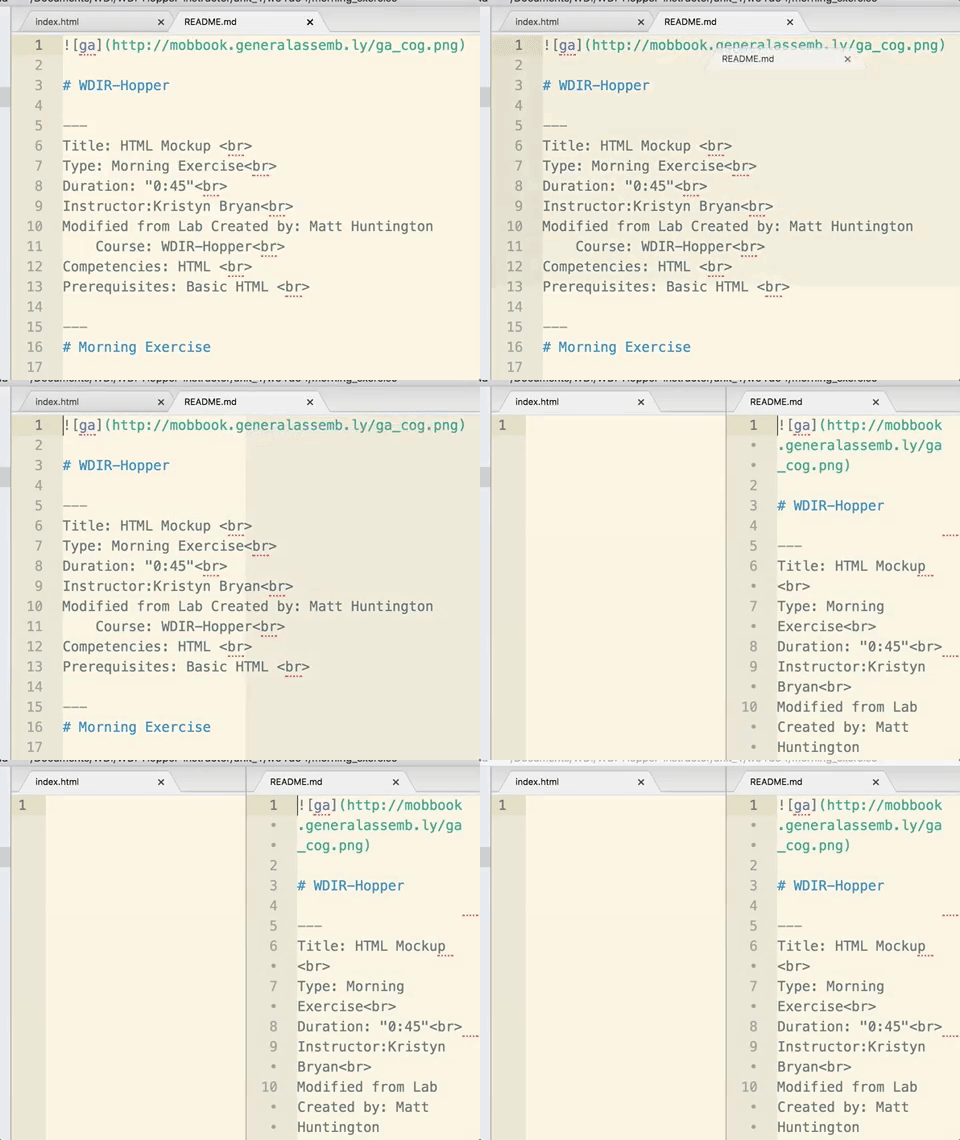
- If you have more than one file that you'd like to look at in Visual Studio Code, you can go up to
Viewand then choose how you would like your panes to be displayed.
Or you can click and drag the tab to where you'd like your new pane to be!

- You can also click and drag the tab, a 'shadow' window will appear of where the tab will go and split, if it is right, just let go, if you want it somewhere else, keep dragging it around.
Indentation
Code is indented to show parent/child relationships and emphasize hierarchy. It also makes it a lot easier for humans to read. Take the extra time (that you saved with all your shortcuts!) to indent your code properly as you write it.

📖 When you have time, check out the AirBnB style guide
Tabs Over Spaces
When indenting your code, please use the tab button. Do not use your spacebar.
Typing
- Coding JavaScript often means reaching for keys that you're not used to. Take 2-5 minutes every day to practice
- Try typing.io that specifically lets you practice tying code
- You can also google
learn to type free- to find the right typing practice for you, even going back and practicing touch typing regular characters can help you speed up
Misc
- We covered a lot of different short cuts and tools today. Come back to this markdown as a reference and look up the things we did and keep practicing
- This course is intense, but it should never get in the way of self-care, make sure you are eating well, getting out of the house, stretching, sleeping enough, and finding ways to unwind that isn't in front of a screen
- There is an expression: "If you don't have time to do it right the first time, when will you have time to do it right a second time?" So take those extra moments to do it right - your future self will thank you